
Download Kubuntu: official images and preparation
English edition published on .
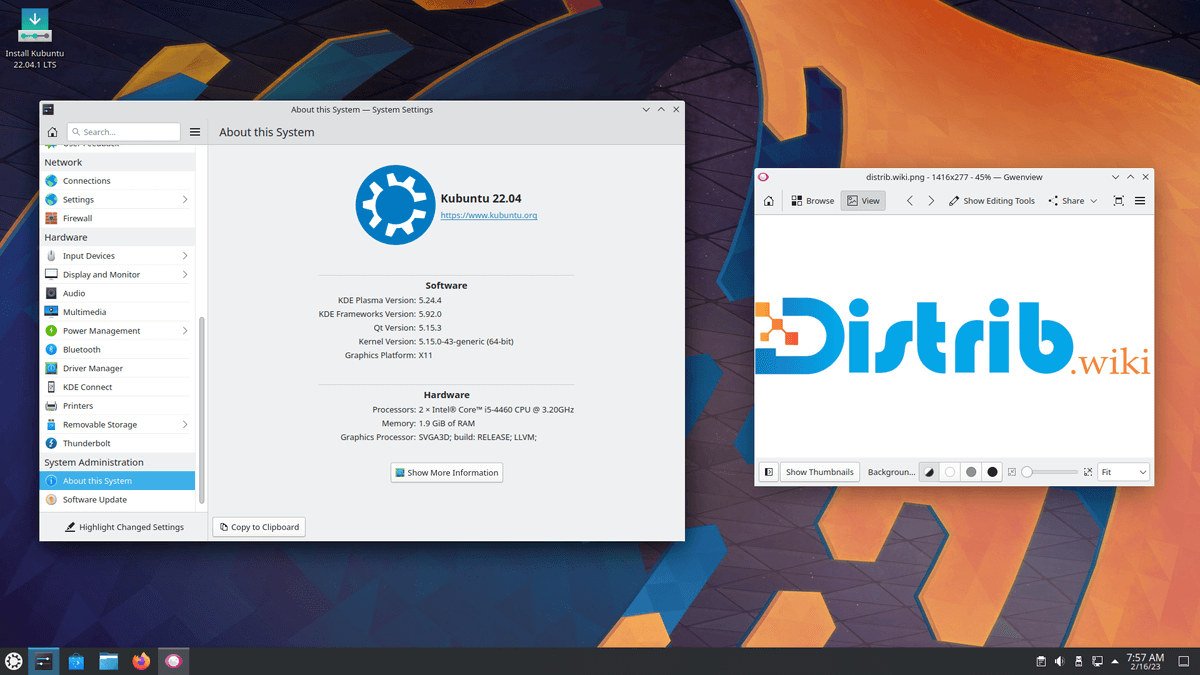
To download Kubuntu, choose a supported release, obtain the official ISO and verify it before preparing USB media. The button above opens the project’s selection; distrib.wiki does not host installation images.
Updated on . Sources and available files checked that day, without downloading an ISO or performing an installation test.
1. Choose version and architecture
At the source-check date, the official page offered Kubuntu 26.04 LTS, supported until April 2029, and Kubuntu 26.10, supported until July 2027. LTS allows more time between major upgrades; the interim release requires an earlier upgrade. Kubuntu 24.04 LTS remained available with support ending in April 2027. To compare desktops and branches, read the Kubuntu profile.
Release directories provide a Desktop amd64 image for x86-64 PCs: this includes compatible Intel and AMD processors, not ARM devices. The image allows a trial before installation. Check the full filename in the 26.04 LTS directory or Kubuntu 26.10 directory; do not choose a pre-release folder instead of a final release.
For the 26.04 branch, the project referenced ISO 26.04.1 when checked. The alternative downloads page also provides torrents and hashes. A torrent is another way to obtain the same image, not a different Kubuntu edition.
2. Verify the ISO and its reference
The official directories above contain SHA256SUMS and SHA256SUMS.gpg. Obtain them from the same directory as your ISO. The verification method published by Ubuntu distinguishes two checks:
- Authenticate the checksum list: verify its GPG signature with the official key and check that key’s full fingerprint according to the documentation. A valid signature using an unidentified key does not establish provenance.
- Verify the downloaded file: calculate its SHA256 and compare every character with the line matching its exact filename in the authenticated list.
Do not reuse a hash for another version or revision. If the signature is incorrect or SHA256 differs, stop preparation and obtain the correct official files. Values are not copied here so that you use the reference for the actual file you selected.
3. Prepare USB media without choosing the wrong disk
Use a USB drive with capacity greater than the image size and first back up its contents. KDE ISO Image Writer writes ISOs to USB and is available for Linux and Windows.
- Select the verified ISO in the image-writing tool.
- Identify the destination USB drive by name and capacity. Disconnect unnecessary media if that makes identification easier.
- Read the erasure warning before confirming: data on the selected media will be replaced.
- Wait for writing to finish and for the tool’s confirmation before removing the drive.
Simply copying the ISO in a file manager does not replace image writing. If using another tool, follow its documentation and always check the target media.
4. Try the system before installation
Open your computer’s boot menu using the manufacturer’s specified key, then select USB. The Desktop image lets you try Kubuntu before launching the installer. Check networking, audio, display, peripherals and a few work documents; record results in the trial worksheet.
Before installing, keep a separate backup and check that you can read the files. Identify the exact disk and partitions involved. To retain Windows, do not choose an option that erases the whole disk; stop if the proposed layout does not match your intention. A successful live trial alone does not validate every consequence of changing systems.
Already using Kubuntu? Check the upgrade path
A new ISO serves fresh installations, among other purposes; its publication does not require reinstalling a machine that already receives updates. To change branches, read the target release’s notes and prepare a backup.
The 15 October Kubuntu 26.10 notes reported, at release time, an upgrade restriction from 26.04 for systems with TPM-backed full-disk encryption. Check the restriction’s current status before upgrading; ISO availability and upgrade-path availability are separate matters.
Return to the Kubuntu profile for differences from KDE neon, applications and trial checks.