
Download Devuan: images and installation preparation
English edition published on .
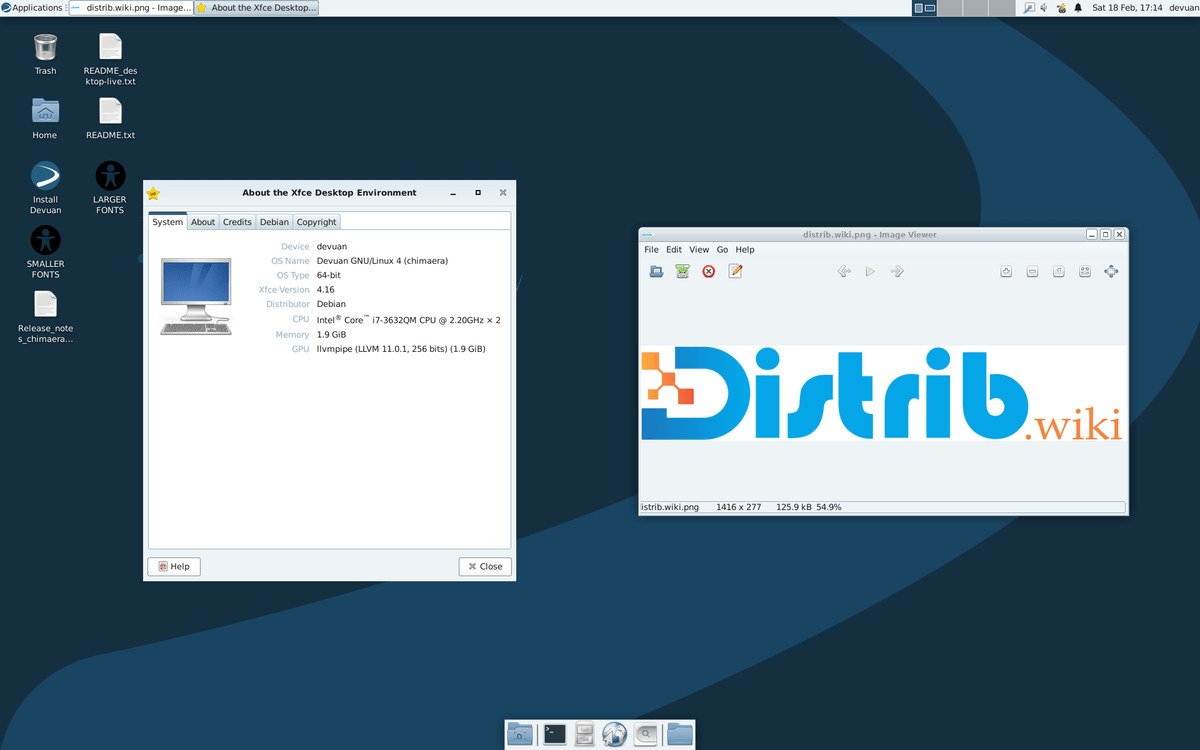
Devuan is an independent Linux distribution derived from Debian, distinguished by its choice to avoid the systemd init system. This guide outlines downloading Devuan and preparing an installation.
Downloading Devuan
Start by obtaining a suitable distribution ISO from the project’s official download resources.
Choose a Devuan release
Devuan releases are associated with Debian release generations. Check which release is supported and best meets your application and hardware needs; do not assume every older image is still maintained.
Download the ISO image
Once you have selected the release and architecture, obtain its corresponding ISO. Make sure your computer has enough storage for the file. Follow the project’s image-verification instructions before using it.
Installing Devuan
After downloading and verifying the ISO, prepare installation media and your computer.
Create installation media
Use an image-writing tool to create USB media, or write the image to a suitable DVD where supported by the chosen image and hardware.
- Insert the USB drive or DVD.
- Select the Devuan ISO in the image-writing or disc-burning tool and identify the destination carefully. Back up USB contents first: image writing replaces them.
- Wait for writing to finish before using the installation media.
Install Devuan
When media is ready, back up your documents independently before proceeding.
- Restart with installation media inserted.
- Open the computer’s boot menu and select that media.
- Follow the installer’s instructions, checking the target disk and partition changes before confirming.
After installation
Devuan provides a Debian-derived approach for users who prefer an init system other than systemd. Once installation is complete, apply available updates and check networking, peripherals and essential applications before relying on the system for everyday work.