
Download Fedora: Workstation or KDE ISO and verification
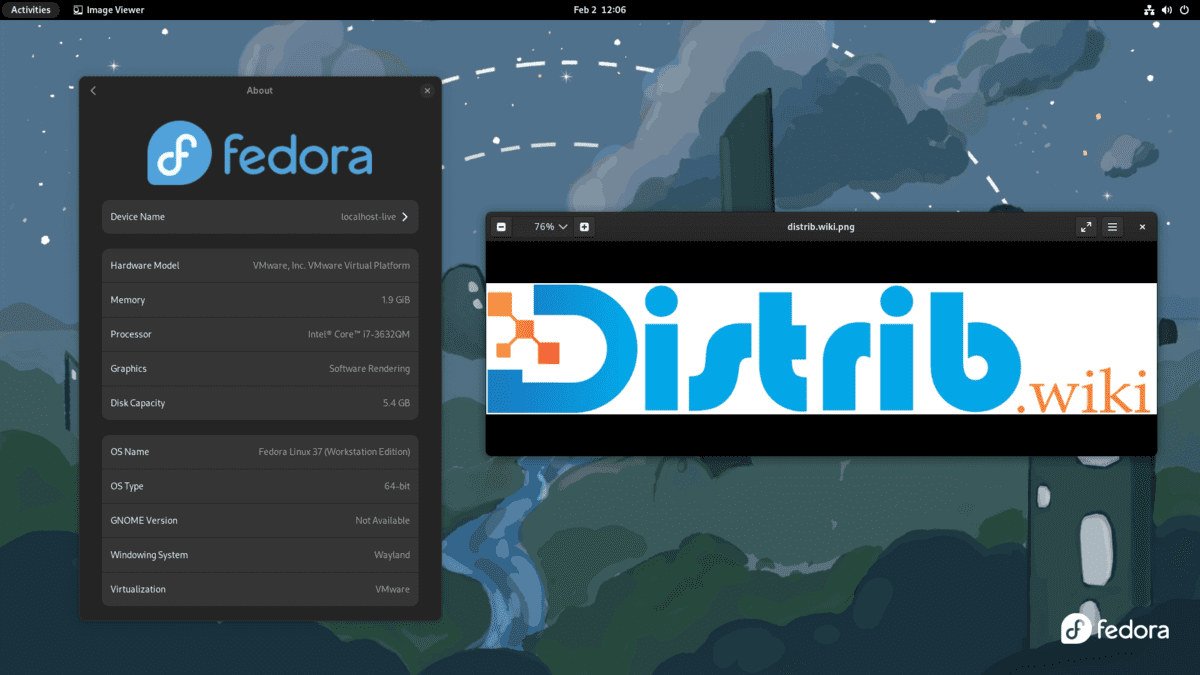
Catalogue screenshot; the current release may look different.
English edition published on .
Download guidance checked against official sources on .
Which Fedora image should you choose, and how do you verify it?
For a personal computer, choose the desktop first, then the architecture. As of 15 October 2026, the official Workstation and KDE Plasma pages offer Fedora 44 as the stable release. Downloads labelled “Beta” are for pre-release testing.
Workstation or KDE Plasma: separate downloads
| Desktop | Official page |
|---|---|
| GNOME | Download Fedora Workstation |
| KDE Plasma | Download Fedora KDE Plasma Desktop |
Both pages provide a Live ISO for Intel/AMD x86_64 and ARM aarch64. Choose according to the target computer's processor, not just a “64-bit” label. Matching architectures alone does not guarantee support for a device: check its hardware documentation too. Separately provided raw.xz images are not interchangeable ISO files.
For an atomic GNOME desktop, see the Silverblue download page (in French), whose installation approach differs. For a selection of computing and research tools, see Fedora Scientific (in French).
Check file origin and integrity
- Open the official verification instructions beside your chosen image and obtain the
CHECKSUMfile for the same edition, release and architecture. - Follow Fedora's OpenPGP verification procedure: obtain the project's certificates, compare their fingerprints with the official references and verify the checksum file's signature.
- Then check your ISO's SHA256 against that authenticated reference. Fedora's
sqorgpgvcommands explain the sequence.
A matching SHA256 does not prove origin if the reference is unauthenticated. Do not use an image if the signature is invalid or the checksum differs. Check filenames and download again from the official project.
Write the USB drive, then try the hardware
Fedora Media Writer runs on Windows, macOS and Linux. It can download an image and write it to the drive; merely copying the ISO file does not perform this operation. Writing replaces the selected drive's partitions. Back up its contents and check the device before confirming.
Boot the Workstation or KDE Plasma Live ISO to check networking, sound, display and devices before installation. A trial does not validate every future use. Also back up files on the internal disk and check essential applications before changing its partitions.
To compare the approaches before downloading, return to the Fedora overview. General installation guidance follows.
How to download Fedora for free
Fedora is a free and open-source operating system developed by the Fedora Project. The official project provides images for personal computers, servers, containers and connected devices. Select the edition for your task rather than downloading an image based only on its version number.
The Workstation page still offers Fedora 44 when this English edition is prepared on 29 October 2026. A scheduled future release is not the same as a stable image available for installation. Check the official download page at the time you need it.
Which edition should you download?
Workstation uses GNOME for everyday desktop work such as browsing, documents, communication and development. KDE Plasma Desktop provides Plasma and its desktop customisation tools. Explore their interfaces before choosing.
Server targets administration of network services and server workloads. IoT targets connected devices. CoreOS provides an automatically updated system for container workloads. These editions have different deployment and administration procedures from a desktop live ISO.
Silverblue and Kinoite are atomic desktops using GNOME and KDE Plasma respectively. Their system base is managed differently from traditional Fedora installations, with deployment-based updates and rollback mechanisms. Use their specific documentation.
Prepare your computer
Back up important files before changing disk partitions. Check your hardware against the chosen edition's requirements, especially graphics, wireless networking and devices that depend on proprietary drivers.
On a computer with limited resources, compare other desktop Spins such as Xfce or LXQt. A lighter desktop is a possibility to evaluate, not a guarantee. Test real tasks and leave enough memory and storage for the applications you need.
Boot and install Fedora
After writing the verified image, restart and select the USB device in your computer's boot menu. The key varies by manufacturer. In a live session, check Wi-Fi, sound, keyboard, pointer and monitors before starting installation. Avoid modifying internal disks during a trial unless that is your intention.
The graphical installer guides you through language, keyboard, target disk and partitioning choices. Erasing the whole disk removes its existing system and data. Keep an independent backup and review exactly which disk will change before confirming.
After installation, apply system updates. Add applications through the desktop's software tools or the appropriate package manager. The Fedora overview explains the distinction between DNF system packages and Flatpak applications.
What to expect from the free download
Fedora can be installed without purchasing an operating-system licence and provides tools for desktop work, software development and system administration. Its release cycle requires ongoing attention to updates and upgrades. Choose it because its applications, hardware support and maintenance model fit your needs.