
Download Mageia: images and installation guide
English edition published on .
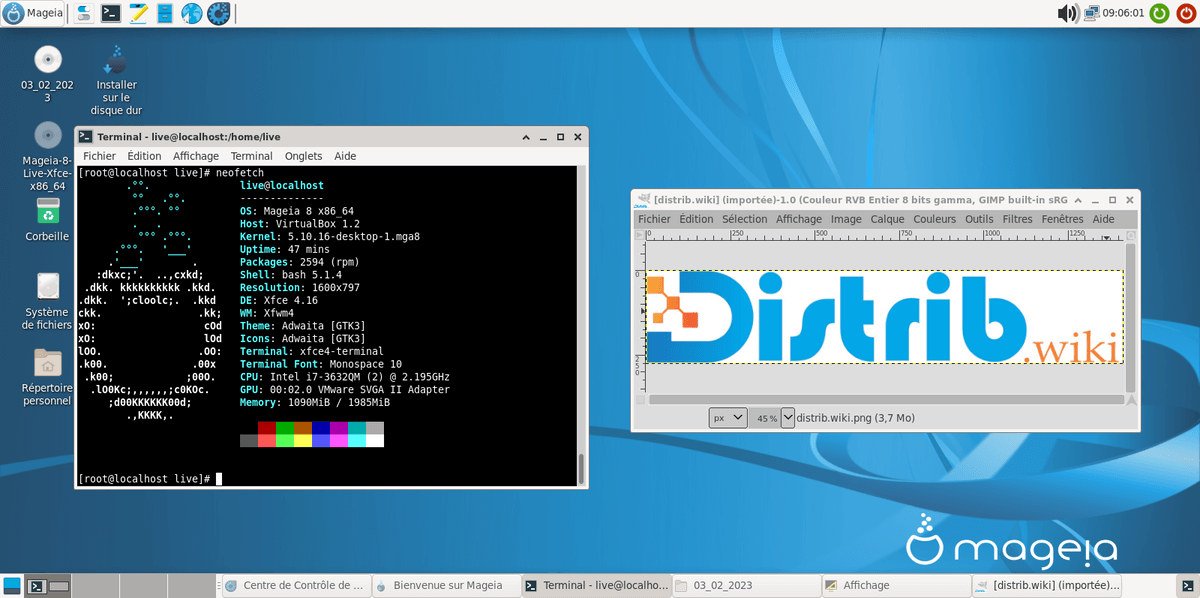
Mageia is a community Linux distribution that combines desktop applications with system administration tools. This guide outlines how to choose an installation image, prepare media and install the system.
Downloading Mageia
Visit the official Mageia website to select an installation image. Choose an edition and architecture supported by your hardware and the selected release. Check the available 32-bit and 64-bit options on that page; availability differs by image and release.
Preparing installation media
Burning a CD or DVD
For a supported optical installation, use your disc-writing application’s image-writing option to burn the downloaded Mageia ISO. Choose a blank disc with enough capacity for the image.
Creating a bootable USB drive
You can also write the Mageia image to a USB drive. Use the tool and image-writing method recommended in Mageia’s documentation rather than assuming that every generic USB creator is compatible. Back up the drive and verify the destination before writing.
Installing Mageia
When the installation medium is ready and important files are backed up, use the following general steps alongside the instructions for your release:
- Insert the installation CD, DVD or USB drive and restart the computer.
- Choose the installation medium in the computer’s boot menu.
- When the Mageia environment or installer loads, select the installation option appropriate to the image.
- Follow the screens to choose the language, keyboard layout and disk partitioning method. Review the selected disk and proposed changes carefully.
- Confirm the settings only after reviewing them, then allow installation to complete.
- Restart when instructed and remove the installation medium so that the computer boots the installed system.
After installation, check for updates and configure Mageia for your applications and hardware. Its administration tools provide a starting point for both new and experienced Linux users.