
Download Haiku: boot media and installation planning
English edition published on .
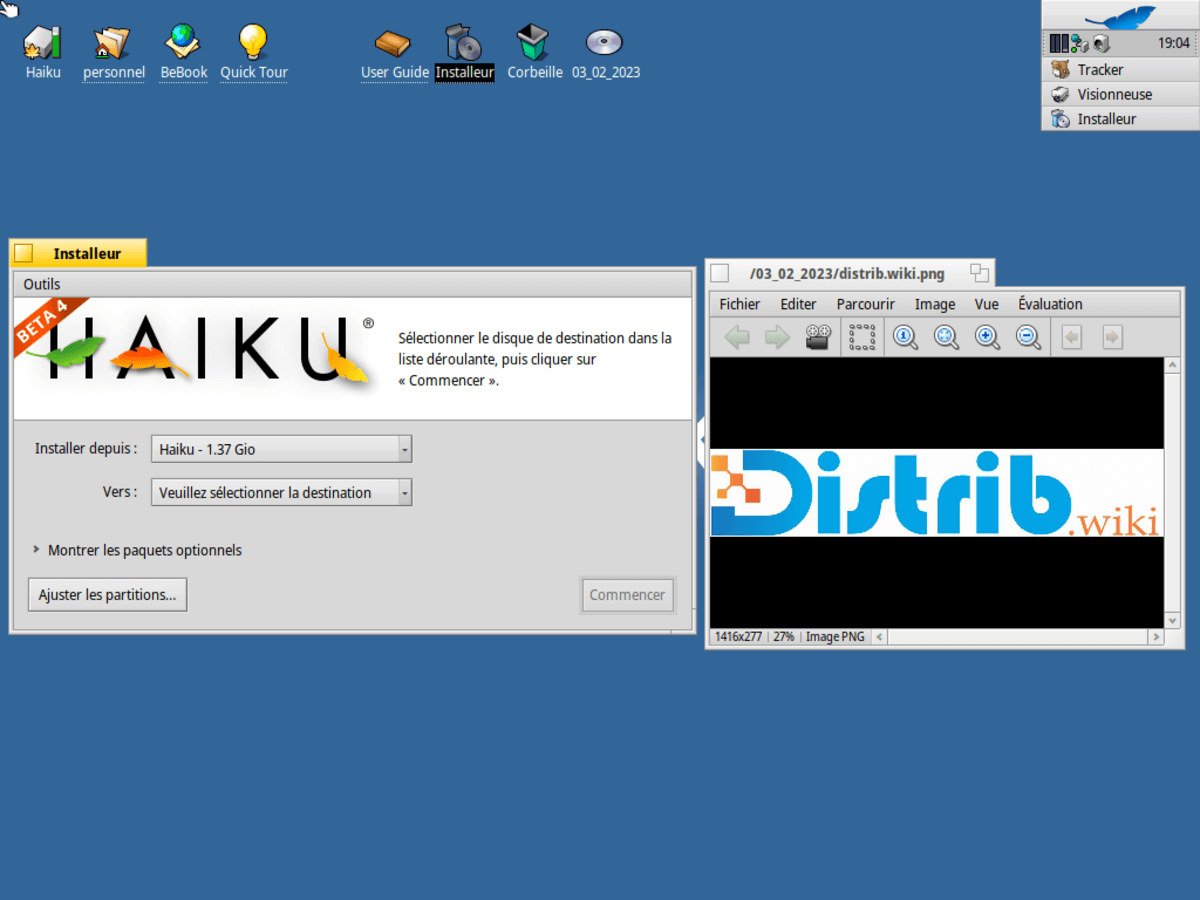
Haiku is an open-source operating system inspired by BeOS, with an emphasis on a coherent desktop experience. It is a distinct operating system rather than a Linux distribution. This guide outlines obtaining an image, preparing installation media and installing it.
Step 1: download Haiku
Get the appropriate installation image from the official Haiku website. Choose the architecture offered for your hardware, such as 32-bit x86 or 64-bit x86_64, and read the release notes, including any beta status and hardware limitations. Follow the instructions for the image format actually provided.
Step 2: create bootable installation media
From Linux
A compatible image can be written to USB using dd. Unmount the USB drive's mounted partitions first and identify the whole target device carefully. The following is an illustrative command from the original instructions, not a command to run unchanged; writing to the wrong device destroys data.
dd if=/chemin_vers_votre_image.iso of=/dev/sdX bs=4M
Replace /chemin_vers_votre_image.iso with the path to your downloaded and, if necessary, extracted image, and /dev/sdX with the actual target USB device. Use the project's instructions for the current image format and wait for writes to finish before removing the drive.
From Windows
A compatible writer such as Rufus can prepare USB media. Select the downloaded image and the correct USB device, then follow the tool's instructions. Check that the tool supports the image format supplied by Haiku.
Step 3: install Haiku
Restart and boot from the prepared installation medium. Once Haiku starts, open its Installer application using the entry provided by that image. Back up existing files before beginning any operation that changes the internal disk.
Prepare the disk
If no suitable destination exists, prepare a partition for Haiku using the disk-management tools available from the installation environment. Follow Haiku's partition and filesystem requirements. Review which partitions will be created or initialised before confirming.
Run the installation
Select the intended destination partition and start installation. The time required varies with the hardware and medium. When copying and boot setup are complete, restart as instructed and remove the installation medium.
The overall process is to obtain an official image, write compatible boot media and install to a carefully chosen destination. Consult Haiku's installation documentation for firmware, partitioning and bootloader details, particularly when keeping another operating system on the same computer.