
Download Lubuntu: official images and preparation
English edition published on .
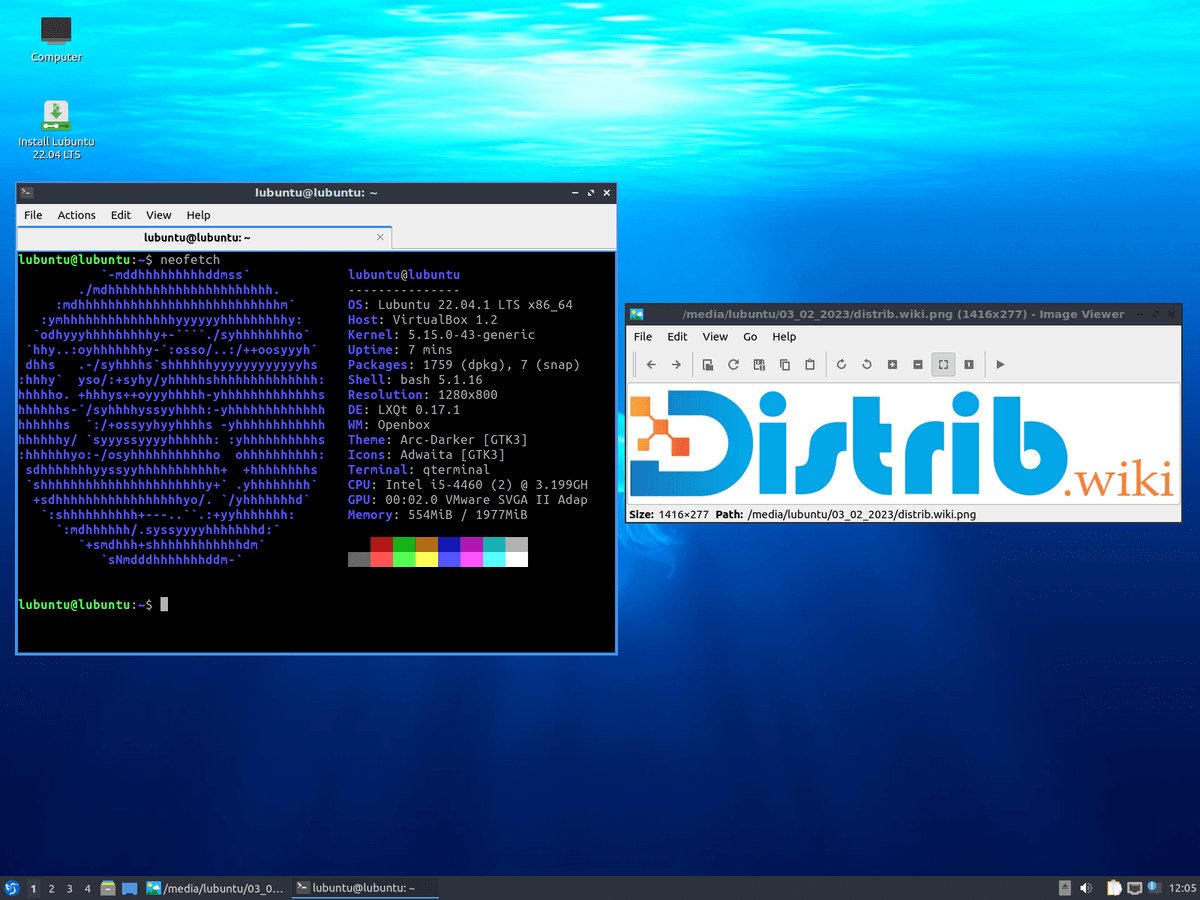
Download a Lubuntu image from the official project, then verify it before preparing USB media. For a longer-lived fresh installation, start with the 26.04 LTS branch; choose 26.10 if its changes meet a need and you can follow its shorter cycle.
Information checked and updated on .
Which ISO should you download?
The Lubuntu download page links to project images. Official Ubuntu directories also provide the files:
- Lubuntu 26.04 LTS: updated image
lubuntu-26.04.1-desktop-amd64.iso, with branch support until April 2029. - Lubuntu 26.10: image
lubuntu-26.10-desktop-amd64.iso, with branch support until July 2027.
amd64 means compatible 64-bit Intel and AMD PCs. These are not installers for ARM processors or 32-bit-only PCs. Return to the Lubuntu profile for desktops and release cycles.
The .iso contains the system. A .torrent file obtains it through a BitTorrent client; that is not the file to write to USB. Choose a final image in the release directories instead of a daily development build.
Verify authenticity and integrity
Obtain SHA256SUMS and SHA256SUMS.gpg from the same release directory as the ISO. A signature authenticates the hash list using a trusted key; SHA256 checks that your file matches the list. A completed download does not perform both checks for you.
- Follow the official Ubuntu image-verification procedure to obtain and authenticate the signing key. Do not trust a key based only on its name.
- Then place the verified
ubuntu.gpgkeyring, both verification files and the ISO in one folder. On Linux, with GnuPG and GNU tools installed, verify the signature:gpgv --keyring ./ubuntu.gpg ./SHA256SUMS.gpg ./SHA256SUMS - Only if the signature is valid, check the images present:
Your exact ISO filename must appear with ansha256sum -c --ignore-missing ./SHA256SUMSOKresult. No result or a failure does not validate the download.
If an error occurs, check release and filenames, then download again if needed. Do not use a hash copied from an old tutorial to verify a new ISO.
Prepare the USB drive
Use a drive whose capacity exceeds the ISO size; 8 GB or larger leaves room for the images listed here. Back up its contents: writing an image erases data on the selected media. Check its name and capacity before confirming.
The Lubuntu boot-media manual describes tools including Startup Disk Creator and mkusb on Linux, and links to Windows/macOS procedures. Use an image-writing function: simply placing the ISO in a file manager does not create bootable USB media.
Try before changing the disk
Open the computer’s boot menu and select USB. Choose Try Lubuntu to explore the desktop before installation. Check networking, audio, display and suspend. The installation manual then explains language, keyboard, software and partitioning choices.
Back up files to other media before installing. To retain an existing system, read the partition summary carefully: an erase option removes data from the selected disk. Also consult your version’s release notes for known issues.
Already using Lubuntu?
Downloading an ISO does not upgrade your installed system. To change releases, use the Lubuntu upgrade procedure for your branch: backup, preliminary updates and mains power. New-release settings let you stay with LTS releases. Do not add -d to force an ordinary upgrade; it targets development releases.
Official sources checked on 30 October 2026. This documentation-based guidance does not represent an installation test on your hardware.