
Download Peppermint OS: editions and installation
English edition published on .
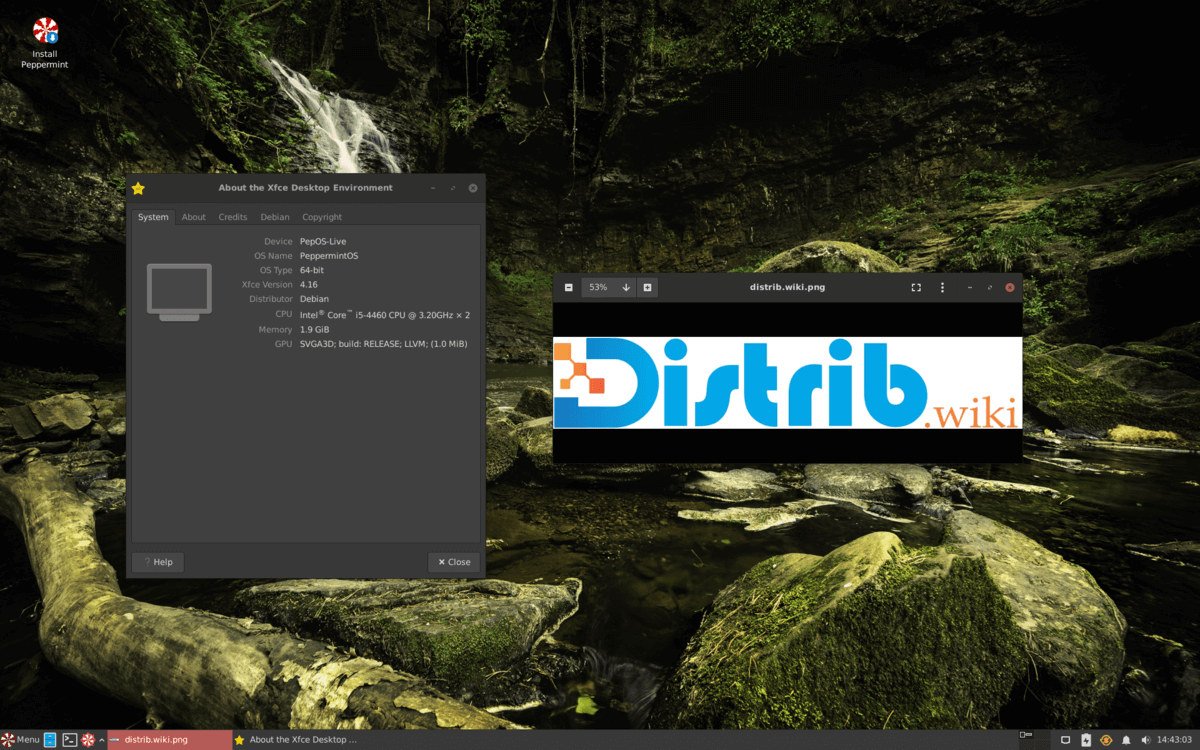
How to download Peppermint OS for free
Peppermint OS offers a relatively lightweight, customisable Linux desktop with a restrained default software selection. It may suit modest computers and users who prefer to assemble their application collection around their own needs. Its suitability for older hardware still depends on the selected image and intended workload.
Download Peppermint OS from the official project website or a recommended mirror. The available images vary by release, with Debian Stable-based and Devuan-based options among the project's editions. Check image details, maintenance status and integrity information before installation.
Choose the base that matches your requirements. The Debian edition is a straightforward starting point for many users, with the Debian software ecosystem. The Devuan edition is aimed at people who specifically want an alternative to systemd.
Which Peppermint OS edition should you download?
The Debian-based edition combines Debian Stable with an Xfce desktop. It offers a conventional interface and access to Debian packages, making it a useful starting point for everyday desktop use.
The Devuan edition follows Peppermint's relatively minimal approach on a base without systemd. It is especially relevant to users who understand the differences between the two bases and have a preference about service management.
The project may also offer Mini or Loaded images. Mini starts with fewer applications; Loaded includes a broader selection. Read the description of the actual image available rather than assuming that every label is offered for every release.
For a first installation, compare the standard Debian-based image with your hardware and application needs. It is often the simpler starting point; other variants can be explored once you have a reason to choose them.
Prepare your computer before downloading
Back up important files before installing an operating system. Partition changes can erase data. A live USB lets you explore Peppermint first, but you still need a backup before making disk changes.
Check your computer's specifications against the requirements of the selected image. A compatible 64-bit processor, several gigabytes of memory and sufficient disk space generally give more room for everyday applications. A lightweight desktop cannot remove the resource demands of a modern browser or other software.
Prepare a USB drive large enough for the installation image. You will use it to boot the live system, check whether essential hardware works and then launch the installer if the result is satisfactory.
Create a bootable Peppermint OS USB drive
Write the ISO to a USB drive with an appropriate tool such as Rufus on Windows or balenaEtcher on Windows, macOS or Linux. Advanced Linux users can use dd. Confirm the target drive carefully because image writing erases its contents.
Restart and open the computer's boot menu. F12, F9, F8, Esc and Delete are common keys, but the correct one depends on the manufacturer. Select the USB device to start Peppermint's live environment.
Use the live session to check Wi-Fi, sound, display, keyboard and mouse, and to assess the Xfce desktop. You can try the system before installing; avoid launching disk-writing tools or the installer until you are ready to make changes.
Install Peppermint OS after downloading
The graphical installer guides you through language, keyboard, time zone, target disk, partitions and account creation. Review the defaults rather than accepting them without checking, especially where storage is concerned.
You may replace the existing system or configure partitions manually. Keeping Windows or another Linux distribution requires careful dual-boot preparation and adequate free space. Back up the existing system before proceeding.
After installation, apply available system updates. Depending on the chosen image, the system uses a Debian or Devuan base; its repositories provide security fixes, bug fixes and other supported updates.
Why consider Peppermint OS?
Peppermint is an option for people who want a modest initial software selection and the freedom to add applications themselves. This can help keep the installed environment focused on the tasks they actually perform.
Its Xfce desktop and relatively minimal setup may make it useful on modest machines or for a simple workstation. Try your real applications before assuming that an older computer will become sufficiently responsive.
The Debian ecosystem provides a broad choice of software, including browsers, office suites, media players, graphics applications and development tools. Availability and versions depend on the base and repositories of the image you choose.
Peppermint offers another route into Linux for users who value a conventional desktop and control over the application selection. The best fit depends on hardware support, documentation and the maintenance period of the chosen edition.
From download to installation
The Debian-based edition is a sensible starting point for many Peppermint users. The Devuan variant addresses a more specific preference for avoiding systemd. Compare the editions rather than treating one as universally best.
Use the official website or a recommended mirror, verify your download, create a bootable USB drive and test the live environment. If it meets your needs, follow the installer carefully and update the installed system.