
Download GoboLinux: images and installation preparation
English edition published on .
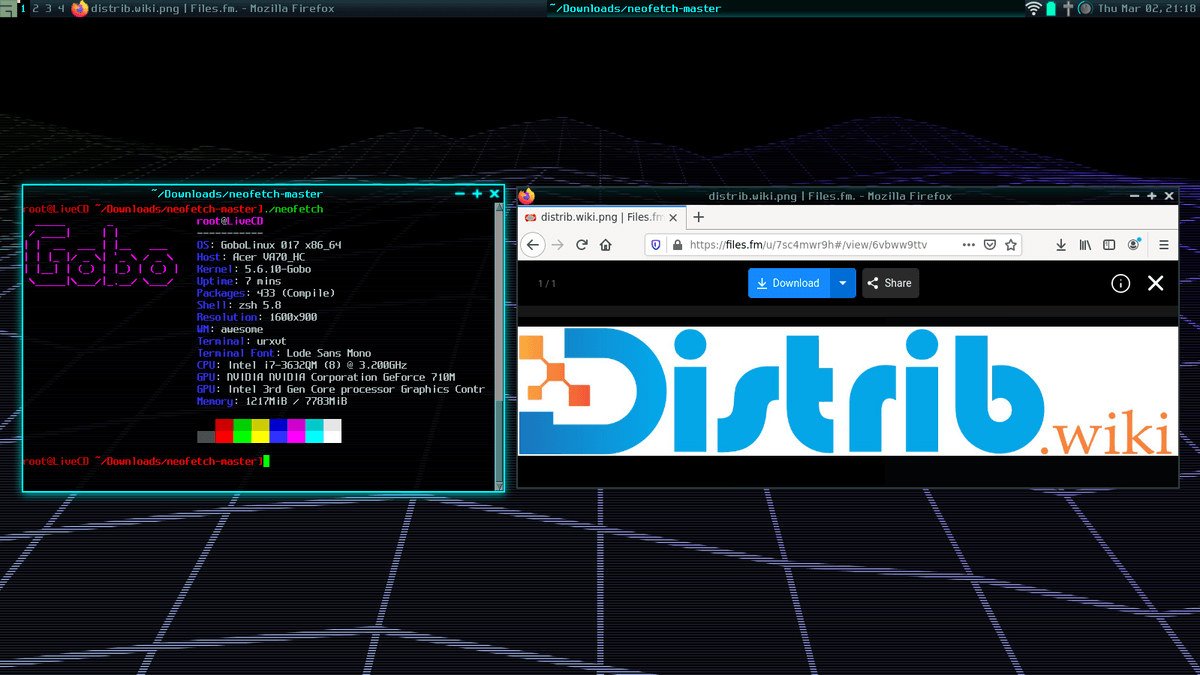
GoboLinux is an unconventional Linux distribution known for organising each program in its own directory. This guide outlines downloading and installing the system to explore that file organisation.
Step 1: download a GoboLinux ISO
Start at the official GoboLinux download page. At the check on 3 November 2026, it offered an x86_64 image; do not assume the older text’s 32-bit choice remains available. Read the release notes and linked known issues before selecting an image for your hardware.
Verify image integrity
Compare the downloaded ISO’s checksum with the matching value published by GoboLinux, using the specified algorithm. Ensure the filename and release match exactly. This checks integrity against the reference consulted; a trustworthy download source remains necessary.
Step 2: create a bootable USB drive
After downloading and verifying the ISO, prepare boot media using a suitable image-writing tool. Examples include Rufus on Windows or dd on Linux; follow the project’s instructions for the image you selected.
Prepare the USB drive
Select the downloaded ISO as the source and correctly identify USB as the destination. The tool writes the image to the device rather than merely storing it as a file. Back up the drive’s contents first and check its capacity and name before confirming erasure.
Step 3: install GoboLinux
Insert the prepared drive, restart and select USB through the computer’s boot menu. Consult the hardware documentation if the device does not appear; do not change firmware settings without understanding the effect.
Installation process
Read the instructions for the selected release. The general installation decisions are:
- Start the live environment and its installation wizard as documented by the project.
- Select the target partition.
- Format only if required and intended, after independently backing up its contents.
- Follow the remaining installer instructions to finish.
Exploring GoboLinux
GoboLinux’s alternative file layout can be useful for learning about operating-system organisation. Use a test environment when exploring it, read known issues and verify your software and hardware requirements before relying on an installation.