
Download EndeavourOS: offline and online installation
English edition published on .
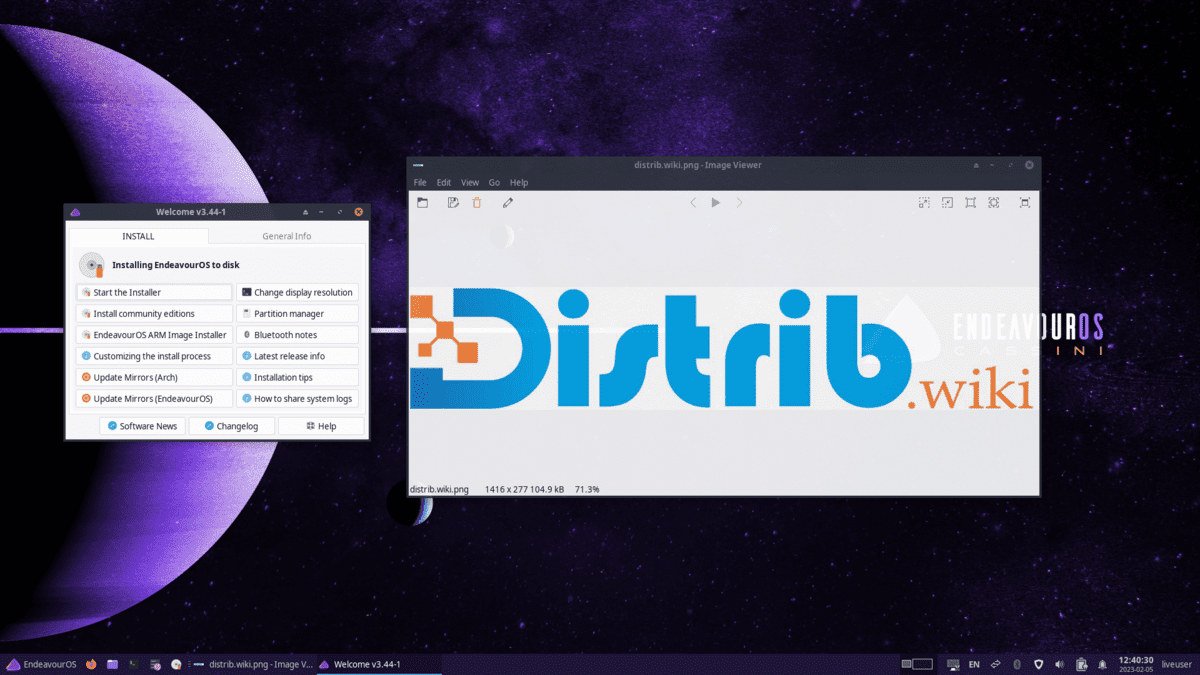
How to download EndeavourOS for free
EndeavourOS is an Arch-based Linux distribution with a graphical installer. It is aimed at users who want an Arch-related system with less manual installation work, including Linux enthusiasts, developers and people prepared to learn rolling-release administration.
Download the ISO from the official EndeavourOS download page. Old GitHub ISO repositories and archive pages may point elsewhere or contain outdated installation media. Use the current official download entry point and verify the image before writing it to a USB drive.
EndeavourOS follows a rolling release model rather than a sequence of fixed desktop releases. The ISO primarily provides an installation environment. After installation, regular complete system updates maintain the system; a new ISO does not normally require reinstalling an existing updated installation.
Which EndeavourOS image should you download?
Choose the official image currently recommended by the project for your hardware. It includes a live environment, the Calamares installer and installation tools. Offline and online installation options depend on the image and release, so check the accompanying instructions.
Offline installation uses the software supplied on the ISO and reduces dependence on the network during installation. The images described in this guide use KDE Plasma for the live environment and offline desktop. Confirm that detail for the image you download.
Online installation offers additional desktop or window-manager choices. Depending on the installer, these may include Xfce, GNOME, Cinnamon, MATE, LXQt or i3. Use the actual list presented by the current installer rather than assuming every historical option remains available.
Offline mode is convenient if the included desktop suits you. Online mode is more appropriate when you want to choose a different offered desktop and have a reliable connection for downloading its packages.
Prepare your computer before downloading
Back up important files before installing EndeavourOS. Operating-system installation can change partitions and erase data. You can explore a live session beforehand, but still need a backup before starting installation.
Check your internet connection, especially for online installation. That mode downloads packages during setup, providing more choice but depending on working network hardware and a stable connection.
Prepare a USB drive large enough for the image. You can use it to start the live environment, test hardware and then launch Calamares when you are ready to install.
Create a bootable EndeavourOS USB drive
Write the ISO to a USB drive with a compatible utility such as Rufus on Windows or balenaEtcher on Windows, macOS or Linux. Advanced users can use dd on Linux. Confirm the target device carefully because writing the image erases it.
Restart and open the computer's boot menu. F12, F9, F8, Esc and Delete are common keys, but consult the manufacturer's instructions for your model. Select the USB drive to start the live system.
Check graphics, keyboard, mouse, Wi-Fi and sound before installation. Assess the desktop and whether essential hardware works. If the results are suitable, launch the installer using the provided desktop entry.
Install EndeavourOS after downloading
Calamares guides you through language, keyboard, time zone, target disk, partitions and user credentials. Online installation also provides the desktop choices supported by that installer.
An automatic whole-disk installation is straightforward but usually erases the selected disk. Manual partitioning allows a more specific layout or preservation of another operating system, but requires careful preparation. Read the final disk-change summary before confirming.
After installation, perform the complete system update recommended by the project. pacman manages the Arch-related package system. Additional software may be available through the AUR, but its user-contributed build instructions require review and are not equivalent to official repository packages.
Why consider EndeavourOS?
EndeavourOS provides an Arch-related installation without requiring every step of a manual Arch install. The graphical setup lowers the initial barrier while leaving substantial control over the resulting system.
Its rolling model offers relatively recent software and ongoing updates. This can appeal to developers and enthusiasts, but also requires attention to project notices and maintenance rather than assuming changes will always be trouble-free.
It can be a useful environment for learning Linux. Its relationship with Arch encourages terminal use, documentation reading and understanding system configuration, while the installer simplifies the first setup.
Arch repositories and the AUR provide access to a broad software ecosystem, including development tools, desktops, window managers and utilities. Check package provenance, maintenance and compatibility before adding third-party build scripts.
From download to installation
EndeavourOS suits users looking for an Arch-related rolling system who are prepared to maintain it. Choose offline mode if the supplied desktop is appropriate, or online mode for a different supported desktop selection.
Get and verify the ISO through the official project, write USB media, test the live environment and follow Calamares carefully. Continue reading the documentation and updating the complete system after installation.