
Download Solus: images and installation preparation
English edition published on .
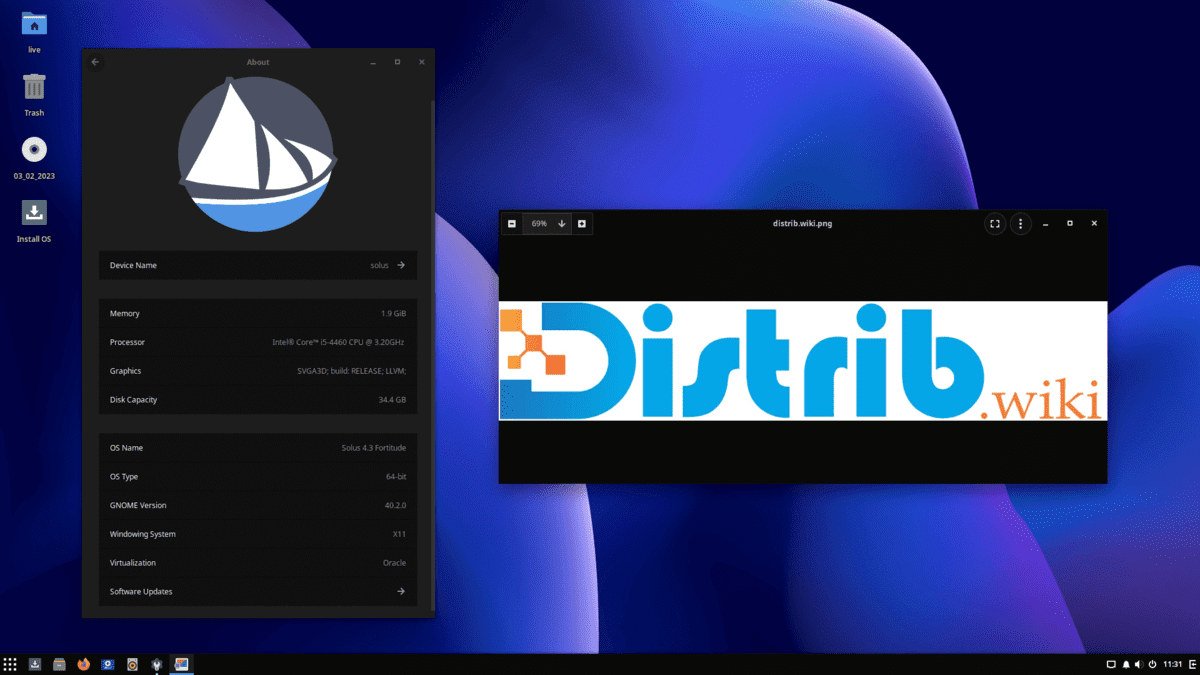
How to download Solus for free
Solus is an independent Linux distribution designed for desktop computers. It provides a choice of desktop environments for everyday work and may interest people exploring Linux, replacing an existing operating system or trying a distribution outside the Ubuntu, Debian, Fedora and Arch families.
Use the official project download page and follow its checksum and signature verification instructions. When checked on 3 November 2026, it offered Budgie, GNOME, Plasma and Xfce editions. These are alternative desktop environments, so choose according to the interface you prefer and the hardware you intend to use. Official Solus editions and download verification.
The source guide refers to Solus 4.9 “Serenity”, announced on 18 April 2026. Solus uses a rolling release model: the ISO is an installation snapshot, and the installed system continues to evolve through updates. Consult the download page for the image currently offered rather than assuming that an ISO's package versions describe an updated installation.
Which Solus edition should you download?
Solus Budgie provides a desktop with a familiar panel-and-menu layout and dedicated settings. It is closely associated with Solus and is a useful starting point if you want to explore the distribution through a conventional desktop interface.
Solus GNOME offers a more streamlined desktop organised around activities and workspaces. Try it if you prefer that style of interaction. Its suitability depends on both your hardware and your habits, especially if you are used to a traditional application menu and taskbar.
Solus Plasma uses KDE Plasma. It gives you many options for adjusting appearance, panels, menus, shortcuts and desktop behaviour. It may suit you if detailed personalisation is an important part of choosing a system.
Solus Xfce is intended to provide a lightweight, conventional desktop. It is worth comparing on less powerful hardware or when you want a relatively simple interface. Application demands still matter: choosing Xfce does not remove the memory and processor requirements of a heavy workload.
Budgie is a reasonable place to start exploring Solus; Xfce is an option to test on modest hardware; Plasma offers extensive configuration; and GNOME provides a different workflow. A live session lets you compare the experience rather than relying only on descriptions.
Prepare your computer before downloading
Back up important files before installing an operating system. Installation can change partitions or erase the disk. Trying a live USB first is helpful, but you still need a backup before starting the installation itself.
The official requirements checked on 3 November 2026 specify a 64-bit x86-64 processor, 4 GB of RAM and 10 GB of free disk space as minimums. More memory and storage are advisable for comfortable everyday use, applications, updates and personal files. Check the current requirements and the needs of your own workload.
Desktop preference and available resources both matter. Budgie and Plasma provide familiar desktop arrangements with different settings and features. GNOME offers an activities-based workflow, while Xfce is intended for lighter desktop use. Test your actual applications and peripherals instead of choosing solely by the computer's age.
Create a bootable Solus USB drive
After downloading and verifying the ISO, write it to a USB drive with a method supported by the Solus installation documentation. Options may include Rufus on Windows, balenaEtcher on Windows, macOS or Linux, and dd for experienced Linux users. Image writing erases the destination drive, so check its identity and back up any files you need first.
Restart the computer and open the boot menu. Depending on the manufacturer, the key may be F12, F9, F8, Esc or Delete. Select the USB drive to enter the Solus live environment.
Try Wi-Fi, sound, the keyboard, mouse and display. Explore the desktop and run the applications relevant to your daily work where possible. A live session helps identify obvious compatibility issues before you launch the installer from the desktop.
Install Solus after downloading
The graphical installer guides you through language, keyboard layout, time zone, destination disk and other system settings. Review its proposed changes carefully. Default options may be convenient, but only you can confirm which disk and data should be kept.
If you want Solus to replace the existing operating system, the installer can use the selected disk according to your partitioning choices. If you need to keep another operating system, plan the dual-boot arrangement first and consult the relevant installation guidance. Keep backups independent of the disk you are modifying.
After installation, apply system updates using Solus' supported tools. Its rolling release model makes regular maintenance important for receiving fixes and new package versions. Read project notices when updates require additional steps rather than treating maintenance as an entirely automatic process.
Why consider Solus?
Solus provides a desktop-oriented Linux system without a paid operating-system licence. Its software selection can support web browsing, office work, media, email, everyday productivity and development, subject to the availability of the applications you require.
It is independent rather than based on Ubuntu, Debian, Fedora or Arch. Its own package management, software choices and update practices give it a distinct approach. Check that its repositories and supported installation methods cover your needs before making it your main system.
The rolling release model lets the installed system progress through updates without routine reinstalls for a new major release. This is useful if you are comfortable maintaining an evolving desktop and reading the project's guidance when components change.
Choose the desktop that suits you
Compare Budgie, GNOME, Plasma and Xfce according to your preferred interface and available hardware. Budgie offers a representative starting point for discovering Solus, while the other editions provide different workflows or customisation choices.
Use the official downloads, verify the selected ISO, prepare a bootable USB drive and try the live environment. If your hardware and applications meet your needs, back up the current system and proceed with installation. Solus offers an independent desktop approach whose suitability is best judged against your own everyday work.