
Download Bluestar Linux: images and installation preparation
English edition published on .
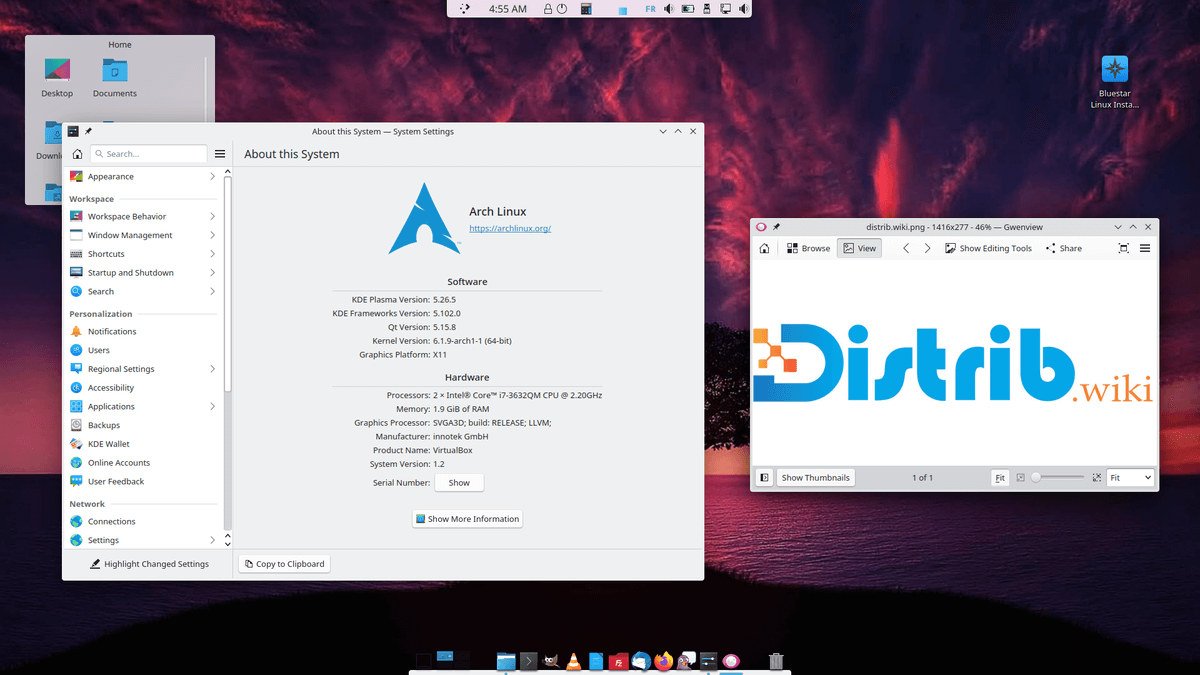
Bluestar Linux is an Arch-based distribution with its own desktop and application selection. This guide outlines downloading the system and preparing an installation on your computer.
Downloading Bluestar Linux
Begin by obtaining an ISO image from the project’s download resources.
Choose a release
Check the editions and release images actually offered by the project, including their applications and requirements. Choose the one suited to your needs rather than assuming all older edition names remain available.
Download the ISO
After selecting an edition, download the corresponding ISO. Ensure your computer has enough storage for the file and follow the project’s verification instructions before preparing installation media.
Installing Bluestar Linux
Once the ISO is downloaded and checked, prepare media and back up your computer’s important files.
Create installation media
Use the downloaded ISO to prepare a USB drive or suitable optical media according to the project’s instructions.
- Insert the USB drive or DVD.
- Use an image-writing or disc-burning program to write the Bluestar Linux image. Check the selected device carefully and back up its contents first.
- Wait for writing and any verification to finish before using the media.
Install Bluestar Linux
With the installation media ready, proceed only after checking your backups.
- Restart with the media inserted.
- Open the boot menu and select it as the boot device.
- Follow the installer’s instructions. Review disk and partition changes before confirming, particularly if retaining another operating system.
After installation
Bluestar Linux offers a prepared Arch-based environment with a selection of applications. After setup, check updates, hardware and software required for your work; its suitability depends on your computer and willingness to maintain the installation.