
Download Linux Mint: editions, ISO verification and USB
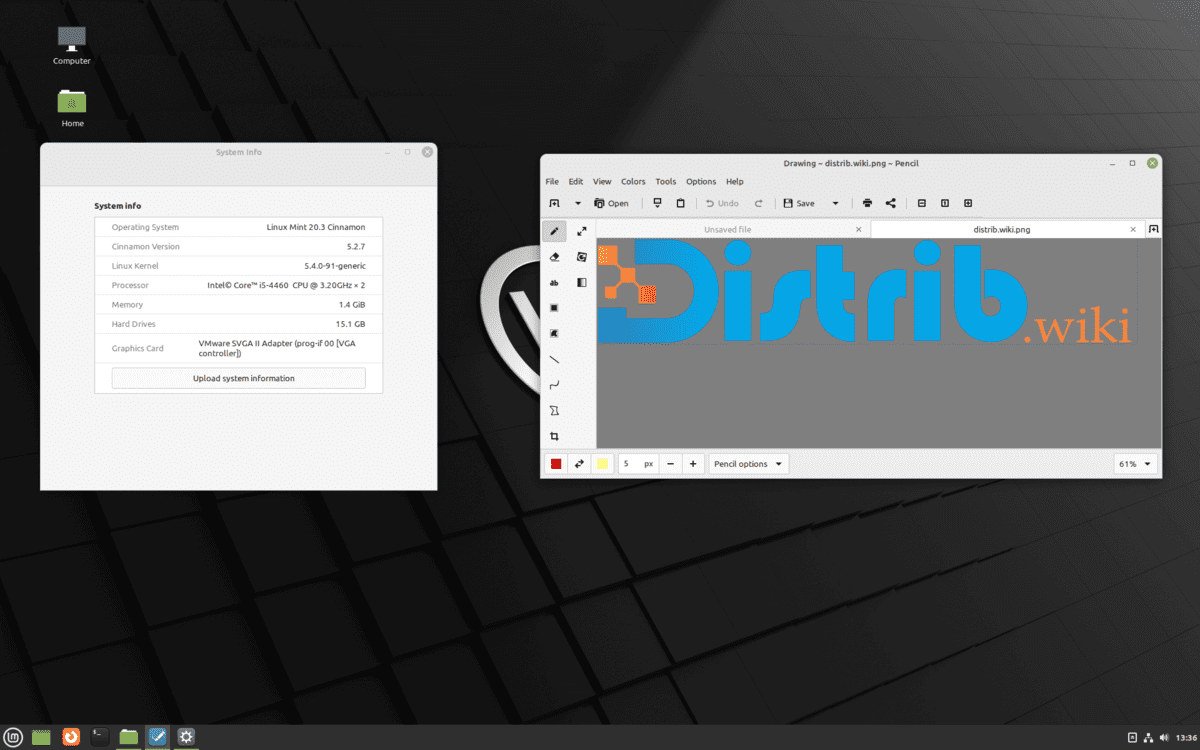
Catalogue screenshot; the current release may look different.
English edition published on .
Verify the ISO before creating a USB drive
Verification guidance checked on .
After downloading, perform two checks: integrity confirms the file is complete and matches the original; authenticity establishes its origin using the project's signature.
- Get the verification files for the same release and download:
sha256sum.txtandsha256sum.txt.gpg. The official documentation explains where to find them. - Compare your ISO's SHA256 checksum with the published value. If they differ, do not create installation media from that file: download it again.
- Also verify the signature. A matching checksum cannot establish the file's origin unless the checksum list itself has been authenticated.
If you already use Linux Mint, its ISO verification tool can perform these checks. For instructions for your system, consult the official Linux Mint image verification guide.
Three things to check before continuing
- Architecture: mainline Linux Mint editions have been 64-bit-only since version 20. Check your processor's capabilities; the computer's age alone does not tell you. See edition and architecture selection.
- USB drive: back it up and check the selected device before writing, which replaces its data. Follow Linux Mint's bootable media instructions.
- Installation: start with a live session and keep a document backup. Erase-disk options delete data on the selected disk: read the official installation choices before confirming.
Use our pre-installation checklist to prepare checks for Wi-Fi, sound and applications.
How to download Linux Mint for free
Linux Mint is a desktop system for everyday tasks, whether you are exploring Linux, considering a move from Windows or evaluating an older computer. Its desktop tools and included applications provide a starting point; hardware and software compatibility still need checking on your own machine.
Use the official Linux Mint download page to choose an ISO and its verification files. The main release available when this English edition was prepared on 29 October 2026 is Linux Mint 22.3 “Zena”, with Cinnamon, MATE and Xfce editions. Choose the edition before downloading.
Which Linux Mint edition should you download?
Cinnamon is the starting point suggested by the project's guide if you are unsure. It provides a conventional desktop with an application menu, panel and notification area, alongside customisation tools. Try the features you need rather than assuming it will suit every computer.
MATE follows a traditional desktop approach. Xfce is described by the project as lighter on resources. Either may be worth comparing when resources are limited, but neither guarantees a particular performance level or hardware compatibility.
LMDE, Linux Mint Debian Edition, uses Debian instead of Ubuntu. It is a separate branch, not another name for the MATE or Xfce edition. Our Linux Mint overview explains the distinction. Follow instructions for your actual branch and release.
Prepare your computer before downloading
Back up important files before changing the operating system. An installation can modify disk partitions. You can begin with a live USB trial, but this does not remove the need for a backup before installation.
Check the processor architecture, memory, available storage and essential devices against the project's requirements. Prepare a USB drive large enough for the selected image and follow the official instructions rather than choosing a fixed capacity without checking the ISO.
Create the bootable USB drive
After verifying the ISO, write it using the tool recommended in the Linux Mint media creation guide for your current system. Select the USB device carefully: writing the image replaces its contents. Copying the ISO as a regular file is not the same operation.
Restart and use the computer's boot menu to select the USB drive. Keys vary by manufacturer; check your device's documentation. In the live session, try Wi-Fi, sound, keyboard, pointer, monitors and essential applications before launching the installer.
What does the free download provide?
You can download and install Linux Mint without purchasing an operating-system licence. Applications are available for browsing, documents, media, image editing and development. Check each application's features and licence: availability does not guarantee it replaces every tool you currently use.
An older computer may remain useful with a suitable Linux setup. Its processor, memory, storage and device support still determine what it can do. Treat the live session as a compatibility check, not a performance benchmark for the installed system.
Before you install
Choose an edition, download from the project, verify the ISO and create the USB drive. Keep your current system until essential needs are covered. Read the partitioning choices and keep an independent backup before confirming installation.