
Download LegacyOS: media and installation steps
English edition published on .
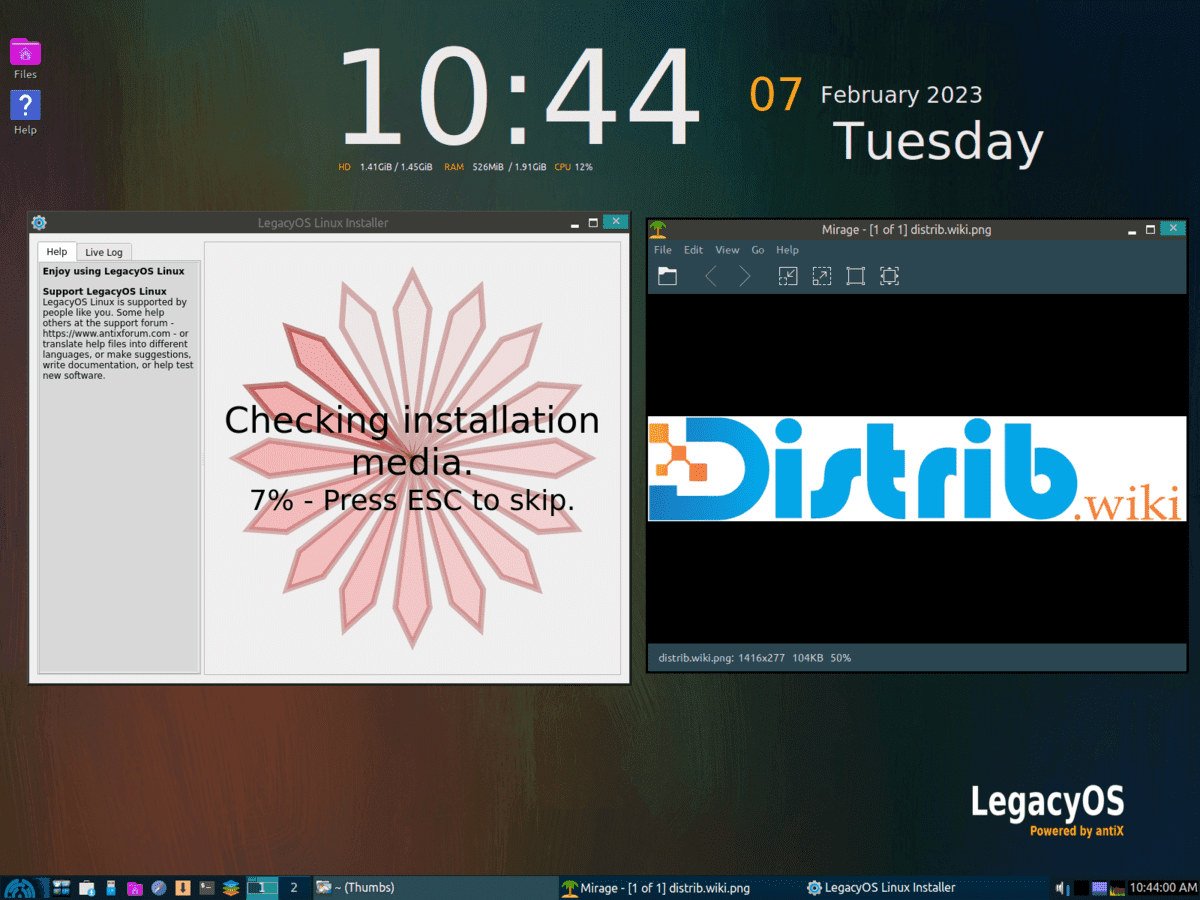
LegacyOS is a lightweight Linux distribution intended to extend the useful life of older PCs. This page outlines downloading an image and preparing an installation; check the requirements and maintenance status of the particular release before using it.
Downloading LegacyOS
To download LegacyOS, visit the distribution’s official website. Its download section provides the available releases and the information needed to choose an image for your requirements.
Download the appropriate ISO image. Depending on the image and the computer, it can be written to an optical disc or a USB drive for installation. Allow enough local storage for the download; image sizes vary between releases.
Preparing the installation
Burning the ISO image to a CD or DVD
After downloading the LegacyOS ISO, use disc-writing software to burn it as a disc image, rather than copying the ISO file onto a data disc. Use a blank CD or DVD with sufficient capacity, if that installation method is supported by the selected release.
Creating a bootable USB drive
Alternatively, use an image-writing tool to create a bootable USB drive, following the release’s instructions. Choose a drive large enough for the image, back up anything on it, and carefully identify the target: writing the image erases its existing contents.
Installing LegacyOS
Once your installation disc or USB drive is ready, you can proceed with installation. Back up important files before changing the computer’s storage, then follow the release-specific instructions alongside this general outline.
1. Booting from the installation medium
Insert the disc or USB drive and restart the computer. Open its boot menu and select the installation medium. Follow the options provided by that LegacyOS image to start the live environment or installer.
2. Choosing the installation type
Review the installation and partitioning choices offered by your release. Installing alongside an existing operating system and replacing it have different consequences; do not assume every image offers both automatically. Check the target disk and proposed changes before confirming.
3. Configuring LegacyOS
Follow the configuration screens for the language, keyboard layout and other settings. Check these choices carefully, as they determine how you will use the installed system.
4. Completing the installation
Confirm installation only after reviewing the settings and disk changes. The time required depends on the computer and installation medium. When the installer finishes, follow its instructions to restart and remove the medium.
These steps provide a starting point for downloading and installing LegacyOS on an older PC. Compatibility and the result depend on the release and hardware, so check the project’s documentation before committing to an installation.