
Download Bodhi Linux: images and installation preparation
English edition published on .
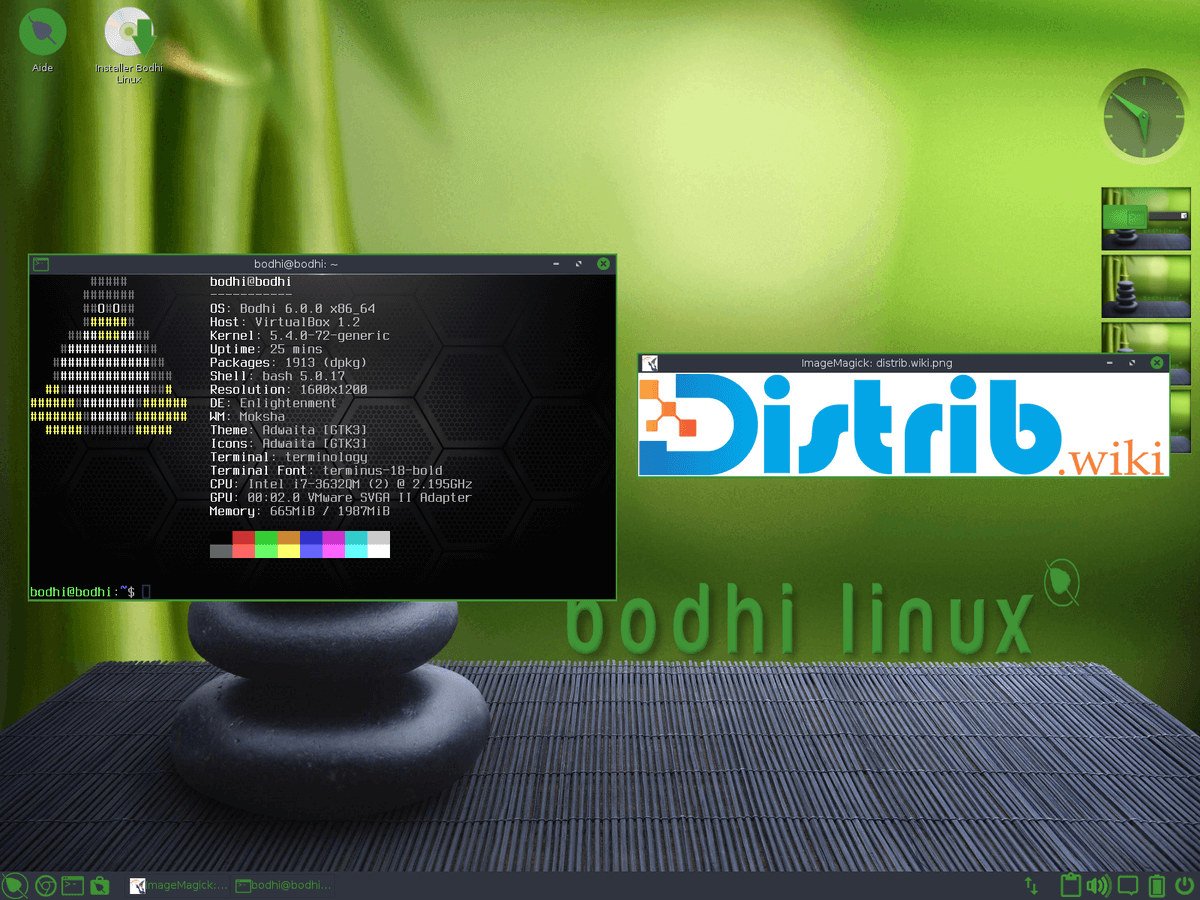
How to download Bodhi Linux for free
Bodhi Linux is an Ubuntu-based Linux distribution built around Moksha Desktop. Its relatively small default software selection is intended for people who want a minimal system they can customise. It may suit an older computer, a modest laptop or a newer machine whose owner prefers to choose applications individually. A light desktop does not, however, guarantee that demanding websites and applications will run smoothly.
Start from the project's official download page and verify the image using the checksums it provides. When checked on 3 November 2026, that page listed Bodhi Linux 7.0.0 in Standard, HWE, s76 and AppPack editions, alongside an older 32-bit Legacy release. An official download page can contain both current and historical images, so check the selected edition's maintenance status as well as its name. Official Bodhi Linux downloads.
Choose the edition to match your hardware and preferred starting point. Standard provides a minimal 64-bit system. HWE and s76 offer different kernel options, while AppPack includes more applications. Legacy is a separate, older option for 32-bit computers; it is not a 32-bit build of Bodhi Linux 7.
Which Bodhi Linux edition should you download?
Standard Edition provides a minimal 64-bit installation with Moksha Desktop. You can then add the applications you actually need. It is a useful starting point if you want to assemble your own desktop environment, provided its kernel supports your computer.
HWE Edition stands for Hardware Enablement. It uses a different kernel from Standard to address hardware support. If some components are not recognised by Standard, compare the kernel versions and current notes for HWE before trying it. The HWE label alone does not establish compatibility with every recent device.
s76 Edition is another kernel option based on Standard. The original download guide associates it with System76 hardware and more recent hardware support. Check the project's edition notes for your particular machine rather than assuming that every System76 or new computer requires this image.
AppPack Edition includes a larger selection of applications from the outset. It may suit you if you would rather start with common software already installed. It needs more storage than Standard but can reduce the amount of initial application setup.
Legacy Edition targets older 32-bit computers, including some non-PAE processors. The official page checked on 3 November 2026 identifies it as Bodhi Linux 5.1.0 and lists a non-updating kernel. Treat this as a historical hardware option and assess the maintenance limitations before considering an Internet-connected daily system.
Prepare your computer before downloading
Back up important files before installing an operating system. Installation can change disk partitions and erase data. Trying a live USB first is useful, but it does not replace a backup before you start the installer.
Check the processor architecture. Standard, HWE, s76 and AppPack are the 64-bit choices described here. Legacy concerns much older 32-bit hardware and has a different software base and maintenance situation. Do not choose it simply because a computer feels slow: many older PCs still have 64-bit processors.
Prepare a USB drive large enough for the image you select, and copy off any files you need to keep. Image sizes differ between editions; AppPack's additional applications require more room. Check the actual download size and the installation guide rather than relying on comparisons with other distributions.
Create a bootable Bodhi Linux USB drive
After downloading and verifying the ISO, write it to a USB drive using a suitable image-writing tool. Options include Rufus on Windows, balenaEtcher on Windows, macOS or Linux, and the image-writing utilities available in many Linux distributions. Follow the current Bodhi installation instructions and double-check the destination drive: writing the image erases its existing contents.
Restart the computer and open its boot menu. Depending on the manufacturer, the key may be F12, F9, F8, Esc or Delete; consult the computer's documentation if necessary. Select the USB drive to start the Bodhi live environment.
A live session lets you try the desktop before installing to the internal disk. Check Wi-Fi, sound, display, keyboard and mouse, and try the applications and working habits that matter to you. Explore Moksha's menus and settings. These checks help you decide whether the hardware and interface meet your needs.
Install Bodhi Linux after downloading
The graphical installer guides you through language, keyboard layout, time zone, destination disk, partition choices, username and password. Read the disk summary carefully. Default settings may be convenient, but they are not a substitute for checking which disk will be changed.
Depending on the existing disk layout and the options offered by the installer, you may replace the current system or install Bodhi alongside another system such as Windows. Dual boot keeps multiple systems on the same computer but needs careful partition planning and a backup.
After installation, apply updates using the tools and repositories intended for your Bodhi release. Its Ubuntu base provides access to a broad software ecosystem, although available packages depend on the release. Install the applications you need and customise Moksha Desktop to your preferences.
Why consider Bodhi Linux?
Bodhi offers a minimal starting point rather than a large default application collection. This lets you build an environment around your own needs and avoid installing software you do not expect to use.
Moksha may be worth trying on a modest or older computer because of its focus on a lightweight desktop. Test your actual workload: web browsing, office documents, music and file management place different demands on the machine. Resource use also depends on the applications you add.
The Ubuntu base offers many packages and extensive documentation. You can add a browser, office suite, media player or development tools, subject to availability and compatibility with the release you install.
The edition choices address different preferences. Standard keeps the initial system small, HWE and s76 provide kernel alternatives, and AppPack includes more applications. Legacy belongs to a separate historical branch for very old hardware and should be considered with its support limitations in mind.
Choose your edition and test it first
For a minimal 64-bit setup, begin by comparing Standard with the kernel alternatives needed by your hardware. Choose AppPack if its included applications suit your workflow. Check the current edition notes before committing to any image.
Use the official download links, verify the ISO, create a bootable USB drive and try a live session. If the hardware checks and Moksha desktop suit you, back up your data and proceed with installation. This gives you a practical basis for deciding whether Bodhi is the right minimal Ubuntu-based desktop for your computer.