
Download Q4OS: Plasma, Trinity and installation media
English edition published on .
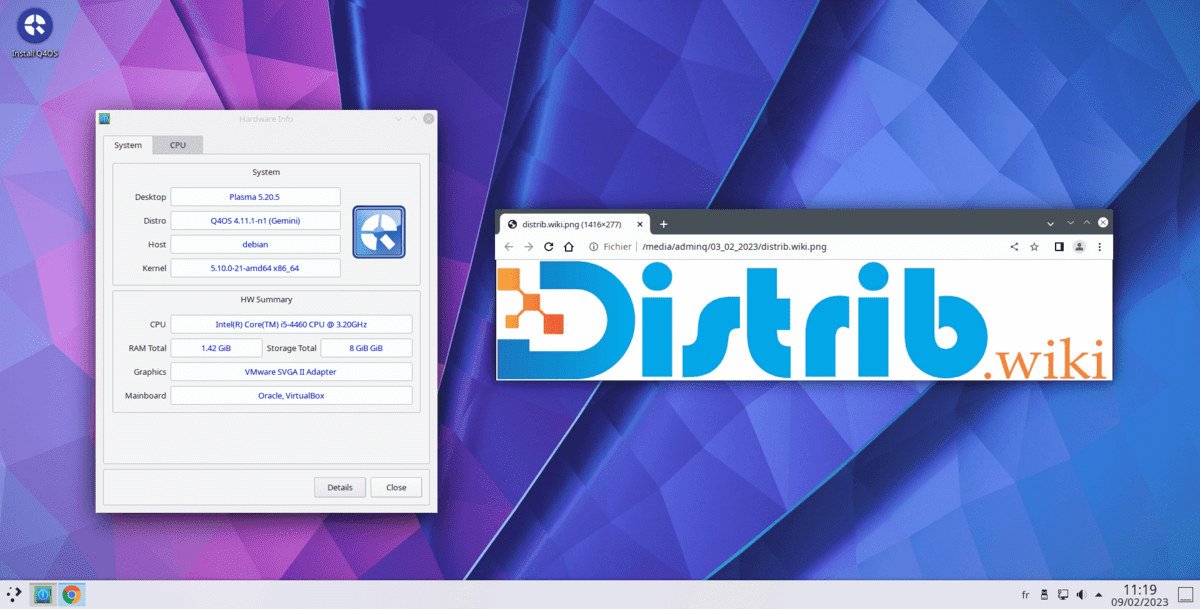
How to download Q4OS for free
Q4OS is a Debian-based Linux distribution with a conventional desktop-oriented approach. Its editions include KDE Plasma and Trinity Desktop Environment, giving users a choice between a highly configurable modern desktop and a more traditional, relatively lightweight interface.
Download Q4OS through the official website or a project-listed mirror. Available media depend on the release, desktop and installation method. Check the architecture, support status and verification information for the specific image you choose.
Choose Plasma if its features and customisation options match your needs. Consider Trinity when you prefer its classic layout or need to conserve desktop resources on older hardware. Neither choice guarantees that all your applications will perform well.
Which Q4OS edition should you download?
Q4OS Plasma provides a configurable desktop with themes, panels and a broad set of graphical features. It is worth considering for a computer with enough resources for Plasma and the applications you plan to run.
Q4OS Trinity uses Trinity Desktop Environment, with a classic interface and comparatively modest desktop requirements. It may be useful on older or limited hardware, although modern websites and applications can still need substantial memory and processing power.
Live media allow you to try Q4OS before installing. Boot from USB to check Wi-Fi, display, sound, keyboard and the chosen desktop layout. If essential hardware works, you can then proceed to the installer.
Install-CD images provide a more installation-focused option, including for some older machines. Depending on the image, they may require a network connection or additional installation choices. Read the specific instructions instead of assuming they behave like a full live desktop.
For a typical compatible modern PC, a 64-bit Plasma live image is a useful starting point. For a modest machine, compare Trinity. If the processor only supports 32-bit software, first check that a maintained compatible Q4OS image is still available; an archived download alone is not sufficient.
Prepare your computer before downloading
Back up important files before installing Q4OS. Installing an operating system may modify or erase partitions. Trying a live USB first helps assess compatibility, but does not eliminate the need for a backup before disk changes.
Compare the machine's processor, memory and storage with the requirements of the actual image. Trinity is designed for relatively modest desktop resources, while Plasma offers a different feature set. Test your intended applications, especially on an older computer.
Prepare a reliable USB drive large enough for the image. Plasma live images may be larger than Trinity or install-CD images. An intact image and dependable installation medium help avoid preventable boot and installation errors.
Create a bootable Q4OS USB drive
Write the ISO using a compatible tool such as Rufus on Windows, balenaEtcher on Windows, macOS or Linux, or dd for experienced Linux users. Select the correct target drive: writing the image erases its existing contents.
Restart the computer, open its boot menu and choose the USB device. The relevant key may be F12, F9, F8, Esc or Delete, depending on the manufacturer. Consult the machine's instructions if necessary.
A live session lets you assess Q4OS without installing it, provided you avoid actions that write to the internal disk. Try the desktop and essential applications; comparing suitable Plasma and Trinity live images can help you decide before committing to an installation.
Install Q4OS after downloading
The installer varies with the chosen image. A graphical installer, where provided, guides language, keyboard, time zone, disk, partitions and account setup. Check every proposed storage change rather than accepting defaults automatically.
You can replace an existing operating system or prepare Q4OS alongside another system such as Windows. Dual boot requires appropriate free space and careful partition choices, with a backup available beforehand.
After installation, apply updates using the supplied graphical tools or the documented APT procedure. The Debian package ecosystem also provides additional applications. Keep the installation within its supported maintenance period.
Why consider Q4OS?
Q4OS offers a Linux desktop without a paid operating-system licence. With suitable applications and hardware, it can serve everyday needs such as browsing, office work, files, music, video and communication.
Trinity may help make an older computer useful as a secondary or family workstation. The result depends on the hardware and workload, so check browser performance and support before relying on a minimal specification alone.
The Debian base supplies a broad package ecosystem and extensive documentation. Q4OS adds its own desktop-focused configuration and tools. Security and reliability still depend on supported releases, updates and appropriate configuration.
Plasma and Trinity offer different layouts and resource profiles. This gives users a practical choice based on their habits and computers rather than requiring the same desktop everywhere.
From download to installation
Consider Plasma for its desktop features and customisation, or Trinity for a more traditional and restrained environment. Choose according to the hardware, maintenance status and applications you actually need.
Use the official project or a listed mirror, verify the image, create bootable media and test the system before installing. Follow the installation guidance carefully, then update the installed system.